


Adding B2B functional Quick Order to BigCommerce store

Hello everyone, today I would like to review one of the popular features of the B2B Bundle - Quick Order. This functionality is very convenient when you need to order a large list of products without wasting time. When I'm making online products, there are times when I catch myself thinking: “if only I could put in a few numbers and be done with it”. Quick Order has long proven itself on various e-commerce platforms as simple but a powerful tool for convenience and increasing sales for both B2B and B2C types. I want to show how such a function can be added to your store if you don`t want to use B2B bundle.
What you will need for this:
Make sure that we have Stencil CLI installed and updated the latest version. Installation instructions are here: https://developer.bigcommerce.com/docs/storefront/stencil/cli/install
In my example, I will use the BigCommerce base theme Cornerstone, the current version can be downloaded from the link: https://github.com/bigcommerce/cornerstone, or by downloading it from your control panel. In this example, I use Cornerstone Version 6.14.0
We will also need tools from BigCommerce Add to Cart URLs, link: https://developer.bigcommerce.com/docs/storefront/cart-checkout/guide/add-to-cart-urls
Also, in this example, I will use React, how to add React to BigCommerce can be found at the link: https://developer.bigcommerce.com/docs/storefront/stencil/themes/foundations/react
as well as additional packages to facilitate development: I use SASS for React components: style-loader, css-loader, sass-loader. Don’t forget to modify webpack.common.js after installing a package. In module -> rules:

{ test: /\.(s)?css$/, use: [{ loader: 'style-loader' }, { loader: 'css-loader' }, { loader: 'sass-loader' }],},- Additionally, I will use a package for React xlsx, for parsing and uploading files and prop-types.
Preparing the Project for starting to develop:
- We need to add a place where we want to place our quick order module. I will add my block to the categories page. Of course, we can place the block where we need, and make it available only under certain conditions, for example, by the name of the user group.
templates\pages\category.html

- In the next step, we will create a file structure for our React component.
assets\js\theme create folder custom, inside create all file what we need to start:
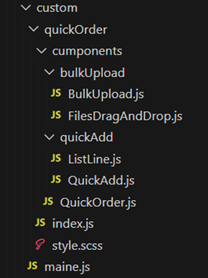
custom - quickOrder - components - bulkUpload - BulkUpload.js - FilesDragAndDrop.js - quickAdd - ListLine.js - QuickAdd.js - QuickOrder.js - index.js - style.scss - maine.js- In maine.js this is where we will pass the render of our global components
import renderCategory from './quickOrder/index';const renderGlobalComponents = () => { renderCategory();};export default renderGlobalComponents;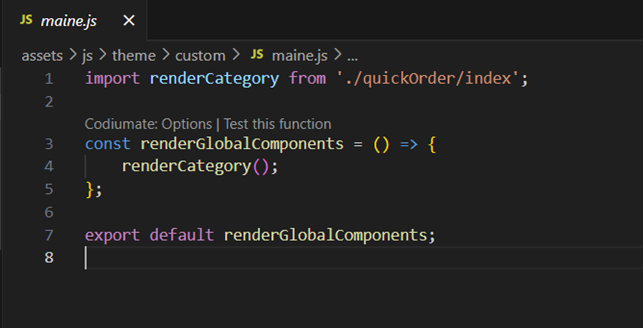
In quickOrder/index.js here we will look for the block where the rendering of our component will take place:
import ReactDOM from 'react-dom';import { createElement } from 'react';import QuickOrder from './cumponents/QuickOrder';const renderCategory = () => { const domNode = document.querySelector('#quickOrder'); ReactDOM.render(createElement(QuickOrder), domNode);};export default renderCategory;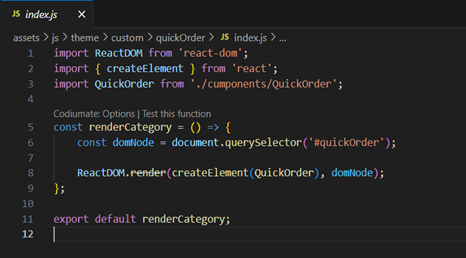
- In QuickOrder.js, we will render two parts of our module in this component.
import React from 'react';import BulkUpload from './bulkUpload/BulkUpload';import QuickAdd from './quickAdd/QuickAdd';const QuickOrder = () => { return ( <> <BulkUpload /> <QuickAdd /> </> );} export default QuickOrder;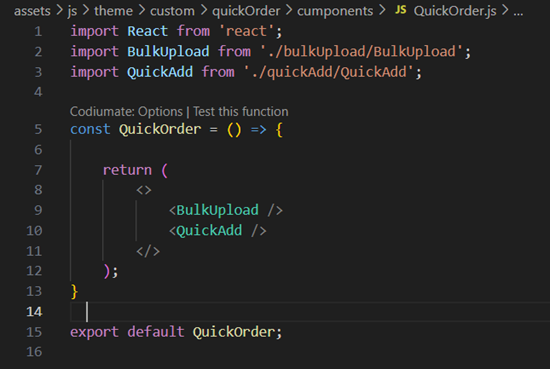
- And the last step is to attach the rendering of our components to the system, I do it using global.js. In assets\js\theme\ global.js
import renderGlobalComponents from './custom/maine';renderGlobalComponents();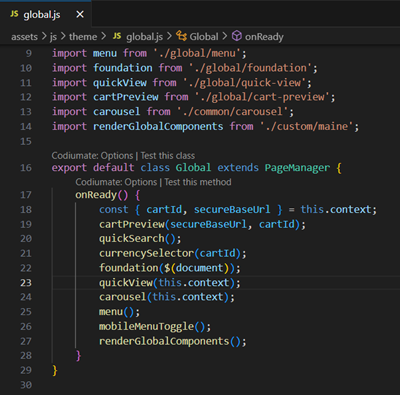
So, now, we have completed the preparatory work.
Basic Principles Quick Order
The principle is very simple, you need to add a product to the cart, BigCommerce has special queries for Add to Cart URLs. For my module I chose: https:///cart.php?action=buy&sku=&qty=
– the unique sku (stock keeping unit)
– number of products
To activate this action, it is enough to request this url and we will add the product to the cart.
fetch(‘https:///cart.php?action=buy&sku=&qty=’);
So, having a list sku and quantity, we can form links and run queries using a loop. As you can see, nothing is complicated here, just need to develop a functionality to receive information about products from a file and interface. I will not describe in detail how it can be done, there are many methods to do it, and the main goal is how to get data from a file. I will demonstrate only one option, and share my module's final version.
Note: I chose because it is a unique number, all products and variants have their code, which makes it more convenient to use than
I chose the file type. xlsx, because my practice shows that clients and customers are more comfortable working with this type of file in contrast to .csv
Quick order: bulk upload xlsx
bulkUpload/BulkUpload.js:
import React, { useRef, useEffect, useState } from 'react';import FilesDragAndDrop from './FilesDragAndDrop';import cartUpdate from '../../../script/cartUpdate';import * as XLSX from 'xlsx';const BulkUpload = () => { const [data, setData] = useState([]); const [fileName, setFileName] = useState(''); const [count, setCount] = useState(0); const [loading, setLoading] = useState(false); const [typeError, setTypeError] = useState({status: true, error: ''}); const [failedSku, setFaoledSku] = useState([]) const drop = useRef(null); const inputFile = useRef(null) //parse file, and recive data sku and qty const handleFileUpload = (files) => { const file = files[0]; const reader = new FileReader(); if(file.type.indexOf('application/vnd.openxmlformats-officedocument.spreadsheetml.sheet') !== -1) { typeError.error = ''; typeError.status = true; setTypeError({...typeError}) } else { typeError.error = 'Type error, invalid file.'; typeError.status = false; setTypeError({...typeError}) } reader.onload = (event) => { const workbook = XLSX.read(event.target.result, { type: 'binary' }); const sheetName = workbook.SheetNames[0]; const sheet = workbook.Sheets[sheetName]; const sheetData = XLSX.utils.sheet_to_json(sheet); const rowObject = XLSX.utils.sheet_to_json(workbook.Sheets[sheetName], {header: 1, defval: ""}) const header = rowObject[0]; if (header[0] === 'sku' && header[1] === 'quantity') { typeError.error = ''; typeError.status = true; setTypeError({...typeError}) } else { typeError.error = 'Scheme error, check according to the example.'; typeError.status = false; setTypeError({...typeError}) } setData(sheetData); }; reader.readAsBinaryString(file); }; const handleDragOver = (e) => { e.preventDefault(); e.stopPropagation(); }; const handleDrop = (e) => { setFaoledSku([]); setCount(0); e.preventDefault(); e.stopPropagation(); const { files } = e.dataTransfer; if (files && files.length) { handleFileUpload(files); setFileName(files[0].name); } }; const handleAdd = (e) => { setFaoledSku([]); setCount(0); handleFileUpload(e.target.files); setFileName(e.target.files[0].name); } const onButtonClick = () => { inputFile.current.click(); }; const handleAddToCart = async () => { if (data.length > 0) { const links = []; data.forEach(item => { links.push(`/cart.php?action=add&sku=${item.sku}&qty=${item.quantity}`); }); setLoading(true); for(let i = 0; i<links.length; i++) { await fetch(links[i]) .then(response => { if (response.url === `${window.location.origin}/cart.php`) { setFaoledSku(failedSku => [...failedSku, data[i].sku]) } else { setCount(count => count + 1); } }) } cartUpdate(); setLoading(false); setData([]); setFileName(''); inputFile.current.value = null; } else { typeError.error = 'file not attached, please add a file.'; typeError.status = false; setTypeError({...typeError}) } } useEffect(() => { drop.current.addEventListener('dragover', handleDragOver); drop.current.addEventListener('drop', handleDrop); return () => { drop.current.removeEventListener('dragover', handleDragOver); drop.current.removeEventListener('drop', handleDrop); }; }, []); return ( <div> <h2>Upload via .xlsx</h2> <p>Please use following format in your .xlsx: sku, quantity. For further Information <a className='download_link' href='#'>Download our simple.xlsx File.</a></p> <div ref={drop} className='file-wraper' onClick={onButtonClick} > <FilesDragAndDrop type="file" /> <input type='file' id='file' ref={inputFile} style= onChange={handleAdd} accept='application/vnd.openxmlformats-officedocument.spreadsheetml.sheet' /> </div> { fileName && ( <div className='file-name'>{fileName}</div> ) } { typeError.status ? <button className={`button button--primary add--button`} onClick={() => handleAddToCart()} > {loading ? <span>Adding <span className='loader'></span></span> : <span>Add To Cart</span> } </button> : <p className='atention'>{typeError.error}</p> } { count > 0 && ( <div> <h2>Product number add: {count}</h2> </div> ) } { failedSku.length > 0 && ( <> <h5 className='atention'>Failed SKU list</h5> <ul className='failed-sku-list'> {failedSku.map((item, index) => { return <li key={`${index}-${item}`}>{item}</li>; })} </ul> </> ) } </div> );} export default BulkUpload;bulkUpload/FilesDragAndDrop.js:
import React from 'react';import '../../style.scss';const FilesDragAndDrop = () => { return ( <div className='drop-area'> Click to "Browse File"<br /> or "Drag and Drop" to Upload. </div> );};export default FilesDragAndDrop;Quick order: Quick Add
quickAdd/ QuickAdd.js:
import React, { useState } from 'react';import ListLine from './ListLine';import cartUpdate from '../../../script/cartUpdate';import '../../style.scss';const QuickAdd = () => { const [lists, setList] = useState([ {id: 1, sku: '', quantity: '', status: ''}, {id: 2, sku: '', quantity: '', status: ''}, {id: 3, sku: '', quantity: '', status: ''}, {id: 4, sku: '', quantity: '', status: ''}, {id: 5, sku: '', quantity: '', status: ''}, ]); const [loading, setLoading] = useState(false); const handleSkuUpdate = (id, value) => { setList(lists.map(list => list.id === id ? { ...list, sku: value } : list )); } const handleQtyUpdate = (id, value) => { setList(lists.map(list => list.id === id ? { ...list, quantity: value } : list )); } const handleListRemover = (id) => { setList(lists.filter(list => list.id !== id)) } const handleListAdd = () => { setList([...lists, {id: lists[lists.length - 1].id + 1, sku: '', quantity: '', status: ''}]) } const handleAddToCart = async () => { const skuList = lists.filter(list => list.sku.length !== 0); if (skuList.length > 0) { const links = []; skuList.forEach(item => { links.push(`/cart.php?action=add&sku=${item.sku}&qty=${item.quantity >= 0 ? 1 : item.quantity}`); }); setLoading(true); for(let i = 0; i<links.length; i++) { await fetch(links[i]).then(response => { if (response.url === `${window.location.origin}/cart.php`) { const arrIndex = lists.findIndex(list => list.id === skuList[i].id); const currentArr = [...lists]; currentArr[arrIndex].status = 'failed' setList(currentArr); } else { const arrIndex = lists.findIndex(list => list.id === skuList[i].id); const currentArr = [...lists]; currentArr[arrIndex].status = 'success' setList(currentArr); } }) } cartUpdate(); setLoading(false); } } const handleRelod = () => { setList(lists.map(list => ( {...list, sku: '', quantity: '', status: ''} ) )); } return ( <div> <h2>Quick order via SKU <span className='reload' onClick={() => handleRelod()}>↻</span></h2> <div className='quick-order-sku'> { lists.map(elem => { return <ListLine list={elem} key={`${elem.id}-list`} handleSkuUpdate={handleSkuUpdate} handleQtyUpdate={handleQtyUpdate} handleListRemover={handleListRemover} /> }) } </div> <div className='button-wraper'> <button className='button button--action' onClick={() => handleListAdd()}>+ Add Row</button> <button className='button button--primary' onClick={() => handleAddToCart()}> {loading ? <span>Adding <span className='loader'></span></span> : <span>Add To Cart</span> } </button> </div> </div> );};export default QuickAdd;quickAdd/ ListLine.js:
import React from 'react';import PropTypes from 'prop-types';import '../../style.scss';const QuickAdd = ({ list, handleSkuUpdate, handleQtyUpdate, handleListRemover }) => { const {id, sku, quantity, status} = list; return ( <div className='quick-order-line'> <span className='icon-remove' onClick={() => handleListRemover(id)}>−</span> <input className='input-sku' value={sku} onChange={e => handleSkuUpdate(id, e.target.value)}></input> <input className='input-qty' type='number' min='0' value={quantity} onChange={e => handleQtyUpdate(id, e.target.value)}> </input> <div className='status-message'> { status.length > 0 && <span className={status === 'success' ? 'success' : 'failed'}>{status}</span> } </div> </div> );};QuickAdd.propTypes = { list: PropTypes.object, handleSkuUpdate: PropTypes.func, handleQtyUpdate: PropTypes.func, handleListRemover: PropTypes.func}export default QuickAdd;And the last touch, a little style for both part:
#quickOrder { display: grid; grid-template-columns: 1fr 1fr; gap: 40px; max-width: 1024px; width: 100%; margin: 0 auto; .reload { cursor: pointer; margin-left: 15px; } .file-wraper { max-width: 470px; width: 100%; .drop-area { width: 100%; border: 1px solid transparent; position: relative; font-size: 20px; min-height: 300px; text-align: center; font-weight: 700; color: #757575; padding: 25px; line-height: 1.2; border-color: transparent; background-color: #ebebeb; background-image: url("data:image/svg+xml;charset=UTF-8,%3csvg xmlns='http://www.w3.org/2000/svg' class='svg-icon' style='width: 1em; height: 1em;vertical-align: middle;fill: currentColor;overflow: hidden;' viewBox='0 0 1024 1024' version='1.1'%3e%3cpath d='M464 432v254.992l-104.4-109.696-57.952 55.152L504 845.056l202.336-212.608-57.92-55.152L544 686.976V432h-80z m305.68-79.168C733.6 220.896 614.88 128 476.96 128c-90.112 0-170.576 33.28-226.592 93.712-50.16 54.096-77.264 127.328-77.84 208.752C85.04 464.384 32 540.128 32 634.528 32 752.24 127.296 848 244.416 848H352v-80h-107.584C171.408 768 112 708.128 112 634.528c0-67.76 41.632-118.752 111.36-136.432l32.608-8.256-2.56-33.536c-5.52-72.688 13.712-135.008 55.632-180.208C349.728 232.16 409.36 208 476.96 208c108.928 0 201.648 79.04 220.448 187.92l5.312 30.704 31.04 2.384C838.72 437.056 912 506.768 912 598.544 912 691.984 836.656 768 744.032 768H656v80h88.032C880.768 848 992 736.096 992 598.544c0-126.128-89.984-223.728-222.32-245.712z' fill='%23cbcbcb'/%3e%3c/svg%3e"); background-repeat: no-repeat; background-position: center 75%; background-size: 40%; } } .file-name { font-size: 36px; font-weight: bold; } .atention { color: rgba(124, 3, 3, 0.786); font-weight: bold; } .loader { width: 12px; height: 12px; border: 2px solid #fff; border-bottom-color: transparent; border-radius: 50%; display: inline-block; box-sizing: border-box; animation: rotation 1s linear infinite; } @keyframes rotation { 0% { transform: rotate(0deg); } 100% { transform: rotate(360deg); } } .failed-sku-list { li { color: rgba(124, 3, 3, 0.786); font-weight: bold; } } .quick-order-sku { padding: 27px 0; input { height: 40px; } .quick-order-line { margin-bottom: 25px; display: flex; gap: 10px; justify-content: space-between; align-items: center; .icon-remove { height: 18px; width: 18px; background-color: gray; color: #fff; border-radius: 50%; text-align: center; font-size: 16px; line-height: 1.1; cursor: pointer; } .input-sku { width: 50%; } } .status-message { width: 60px; } } .button-wraper { display: flex; justify-content: space-between; padding: 0 50px 0 0; } .success { color: green; font-weight: 500; } .failed { color: rgba(124, 3, 3, 0.786); font-weight: 500; }}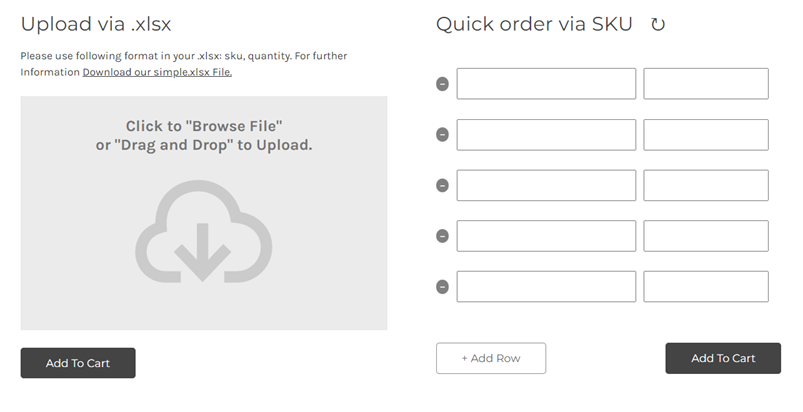
Note: I would like to draw attention to several points. This is a check whether the product was successfully added. Since we work with the frontend, we don't have api tools to check, but we can get a response to the request to add to the cart, and if the url contains only a link to: https:///cart.php without a cart id query, it means that the product is not added to the cart due to the lack of sku or stock, so be sure to add such a check to improve the UX. Also, since the addition takes place without reloading the page, we do not have a dynamic update of the positions in the mini basket in the header, you can add a small function that will be responsible for this cartUpdate:
export default function () { const pricePlace = document.querySelector('[data-cart-preview] .countPill') fetch('/api/storefront/cart', { credentials: 'include', }).then((response) => { return response.json(); }).then((myJson) => { if (myJson.length > 0) { const products = myJson[0].lineItems.physicalItems; let quantProd = 0; products.forEach(element => { quantProd += element.quantity; }); pricePlace.innerHTML = `${quantProd}`; pricePlace.style.display = 'inline-block'; } });}With this module as a base, you can improve, develop, and add any options as required by business, such as a quick search that already exists in the theme, or create your own using the gql api to improve UX. Whether to expand file types for download.
I hope that this article will be interesting for you and will help develop for your clients business, our Blackbit team is always ready to help and share experience.